Login Page
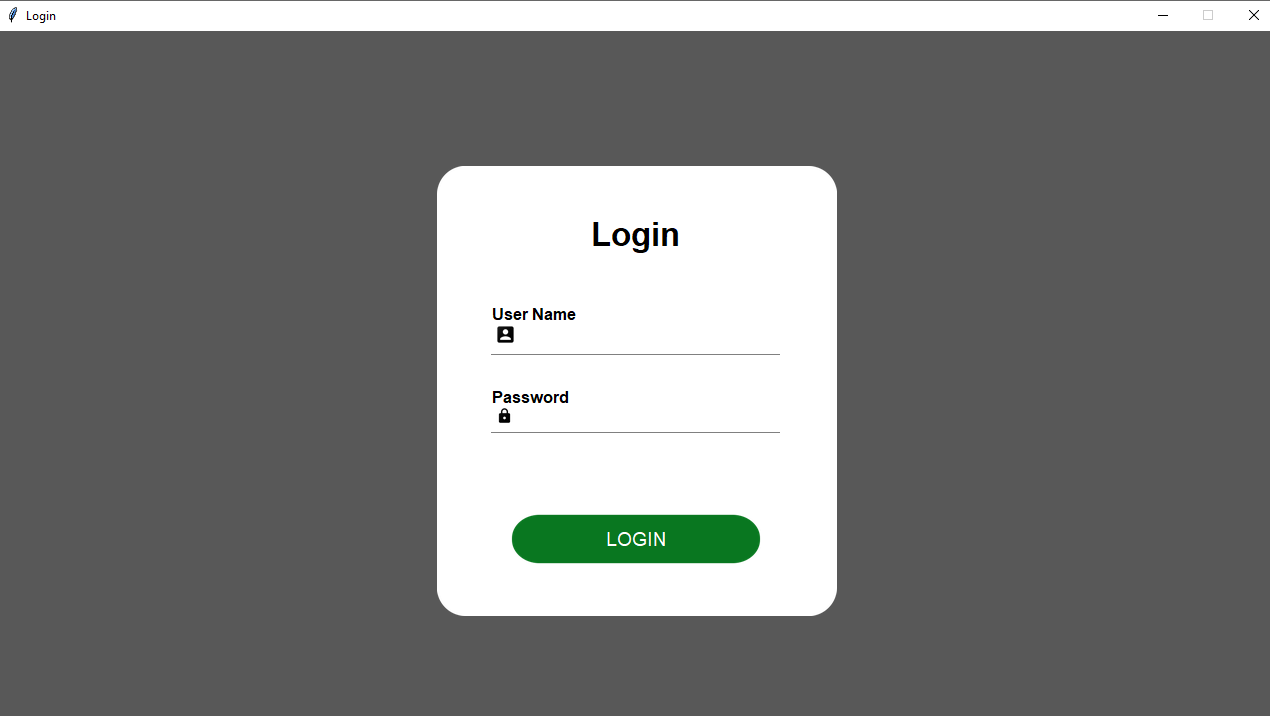
    root = self.winfo_toplevel()
    root.title("Login")
    root.configure(bg="#585858")
    root.resizable(width=0, height=0)
    win_width = 1280
    print(1280 * 56.25 / 100)
    win_height = int(1280 * 56.25 / 100)
    root.geometry(str(win_width) + "x" + str(win_height))

    root.attributes('-alpha', 0.0)
    Util.center(root)
    root.attributes('-alpha', 1.0)
After creation of window, we will add a canvas background.
    bg_canvas = RoundBackgroundFrame(root, width, height, padding, cornerradius, color, "#585858")
    bg_canvas.place(width=width, height=height, x=win_width / 2 - width / 2, y=win_height / 2 - height / 2)

    class RoundBackgroundFrame(tk.Canvas):

        def __init__(self, parent, width, height, padding, cornerradius, color, bg):
            tk.Canvas.__init__(self, parent, borderwidth=0, relief="flat", highlightthickness=0, bg=bg)
            self.width = width
            self.height = height
            self.padding = padding
            self.cornerradius = cornerradius
            self.color = color

            original = Image.open("images/corner.png")
            resized = original.resize((int(40), int(40)), Image.ANTIALIAS)
            self.image_r_t = ImageTk.PhotoImage(resized)

            original = original.rotate(90, expand=0)
            resized = original.resize((int(40), int(40)), Image.ANTIALIAS)
            self.image_l_t = ImageTk.PhotoImage(resized)

            original = original.rotate(90, expand=0)
            resized = original.resize((int(40), int(40)), Image.ANTIALIAS)
            self.image_l_b = ImageTk.PhotoImage(resized)

            original = original.rotate(90, expand=0)
            resized = original.resize((int(40), int(40)), Image.ANTIALIAS)
            self.image_r_b = ImageTk.PhotoImage(resized)

            self.shape(width, height, padding, cornerradius, color)
            (x0, y0, x1, y1) = self.bbox("all")
            width = (x1 - x0)
            height = (y1 - y0)
            self.configure(width=width, height=height)

        def shape(self, width, height, padding, cornerradius, color):
            self.create_polygon((padding, height - cornerradius - padding, padding, cornerradius + padding,
                                padding + cornerradius, padding, width - padding - cornerradius, padding,
                                width - padding, cornerradius + padding, width - padding,
                                height - cornerradius - padding, width - padding - cornerradius, height - padding,
                                padding + cornerradius, height - padding), fill=color, outline=color)

            self.create_image(width - self.image_r_t.width(), 0, image=self.image_r_t, anchor=NW)
            self.create_image(0, 0, image=self.image_l_t, anchor=NW)
            self.create_image(0, height - self.image_l_b.width(), image=self.image_l_b, anchor=NW)
            self.create_image(width - self.image_r_b.width(), height - self.image_r_b.width(), image=self.image_r_b, anchor=NW)
    width = width * 92 / 100
    height = height * 92 / 100
    base_frame = Frame(width=width, height=height, bg=color)
    bg_canvas.create_window(width*4/100, height * 4/100, anchor=NW, window=base_frame)

    # Add Heading Name

    label_login = Label(base_frame, text="Login", font=font.Font(family="Lucida Grande", size=25, weight='bold'), bg=color)
    label_login.place(width=width - 20, x=10, y=height*0.07)

    self.ce_username = CustomEntry(base_frame, 300, 55, 10, 2, color, "User Name", "images/ic_user_black.png")
    self.ce_username.place(x=width / 2 - 150, y=height*0.30)

    self.ce_pwd = CustomEntryPWD(base_frame, 300, 50, 10, 2, color, "Password", "images/ic_lock_black.png")
    self.ce_pwd.place(x=width / 2 - 150, y=height*0.50)

    button = RoundedButton(base_frame, 250, 130 / 2.56, color, "images/button3.png", "LOGIN", font=("Lucida Grande", 14),
                               command=lambda: self.login_click(root))
    button.place(x=width/2 - 250/2, y=height*0.80)
def login_click(self, root):

    db = Util.connect_db()
    cursor = db.cursor()

    staff_id = self.ce_username.entry.get()
    staff_pass = self.ce_pwd.entry.get()

    key = "admin_id"
    cursor.execute('SELECT value FROM system_setting WHERE key IS ?', (key,))
    rows = cursor.fetchone()

    admin_id = rows[0]

    key = "admin_password"
    cursor.execute('SELECT value FROM system_setting WHERE key IS ?', (key,))
    rows = cursor.fetchone()
    admin_pwd = rows[0]
    # MAX_DAYS_ALLOWED_integer = int(admin_pwd)

    if staff_id == admin_id and staff_pass == admin_pwd:

        # AppConstant.STAFF_ID = staff_id
        AppConstant.STAFF_NAME = staff_id

        key_is_logined = "is_logined"
        cursor.execute("UPDATE system_setting SET value = ? WHERE key = ?",
                       (TRUE, key_is_logined,))

        db.commit()

        navigate_to_dashboard(root)

        self.ce_username.entry.delete(0, 'end')
        self.ce_pwd.entry.delete(0, 'end')

    else:
        messagebox.showerror(title="Error", message="Incorrect Id or Password")
Programmer Mirta is for learning and training. Projects might be simple to improve learning. Projects are constantly reviewed to avoid errors, but we cannot assure full correctness of all content. While using Programmer Mitra, you agree to have read and accepted our terms of use, cookie and privacy policy.
Copyright 2021 by Programmer Mitra. All Rights Reserved.